
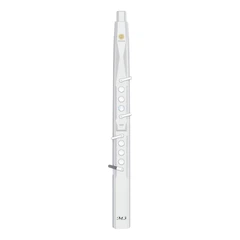


To use a MIDI device as a controller, follow these steps:
1.Connect the device: First, connect your MIDI device to your computer. If it has a USB port, use a USB cable. For keyboards without USB, you can use a MIDI-to-USB interface, plugging the MIDI end into the keyboard and the USB end into your computer.
2.Install Necessary Drivers: Some MIDI keyboards require drivers to communicate with your computer. If that's necessary, download and install these from the keyboard manufacturer's website.
3.Open Your DAW: Launch your Digital Audio Workstation. Each DAW will have its unique way of recognizing MIDI devices. It's always better to check the compatibility between your MIDI device and your DAW of choice before purchasing.
4.Configure DAW for MIDI Input: In your DAW, find the MIDI settings (often in "Preferences"). Ensure your MIDI keyboard is listed as an input device. This step usually requires selecting the keyboard model from a list or simply enabling MIDI input.
5.Assign Instruments to the Keyboard: In your DAW, you can assign virtual instruments or specific tracks to be controlled by the MIDI keyboard. This is usually done through the track's instrument settings.
6.Play and Record: Now, you can play the MIDI keyboard to control the assigned instruments! Record your performance in the DAW, where it will be captured as MIDI data.
7.Map Additional Controls: If your MIDI keyboard has other controls like knobs, sliders, or drum pads, you can map these to control various parameters in your DAW, such as adjusting volume, changing effects, or triggering samples.
By using a MIDI controller together with Antares' powerful Auto-Tune products, such as Auto-Tune Pro X and Harmony Engine, you can achieve real-time manipulation of pitch correction and harmony creation.
For Auto-Tune Pro and Auto-Tune Artist in Logic Pro X, the integration process couldn't be easier: create audio and software instrument tracks, set the output of the audio track to "No Output," and load Auto-Tune as an AU MIDI-controlled effect.


