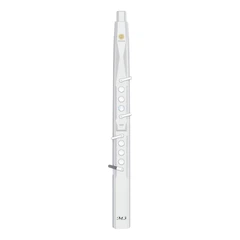

Here are the general steps to install the firmware update on your EWI:
1. Preparation
Make sure you have downloaded the latest firmware file for your specific EWI model. You can obtain the firmware file from the official website of the EWI manufacturer or other reliable sources.
Check that your EWI is fully charged or connected to a stable power source to prevent any power interruptions during the update process, as an interrupted update can potentially damage the instrument.
You may also need a computer with the appropriate software and a MIDI interface to transfer the firmware to the EWI. Some EWIs may require specific software provided by the manufacturer, while others may be compatible with common MIDI transfer programs.
2. Connect the EWI to the Computer
Use a MIDI cable or other recommended connection method to connect your EWI to the computer. Ensure that the connection is secure and stable. If you are using a wireless MIDI connection, make sure it is properly configured and has a strong signal.
3. Launch the Firmware Update Software
If the EWI requires specific update software, install and launch it on your computer. Follow the on-screen instructions to set up the software if it's your first time using it. If the EWI is compatible with a general MIDI transfer program, open that program on your computer.
4. Locate and Select the Firmware File
In the firmware update software or MIDI transfer program, look for an option to load or select the firmware file you downloaded earlier. Navigate to the folder where you saved the firmware file and select it.
5. Initiate the Update Process
Once the firmware file is selected, look for a button or option in the software to start the update process. This may be labeled as "Update," "Install Firmware," or something similar. Click on it to begin the transfer of the firmware to the EWI.
During the update, do not disconnect the EWI from the computer or turn off the power to either device. The process may take several minutes, depending on the size of the firmware file and the speed of the connection. You may see a progress indicator showing the percentage of completion or other status messages.
6. Completion and Verification
Once the update is complete, the software will usually display a confirmation message. At this point, you can safely disconnect the EWI from the computer.
Turn on the EWI and check its settings and functionality to ensure that the firmware update was successful. You may notice new features, improved performance, or changes in the instrument's behavior as described in the firmware update release notes.
SUNRISE MELODY M3 Electronic Wind Instrument - The best-selling Electronic Wind Instrument
. 66 Timbres
. Built-in Speaker
. Connect Bluetooth
. Ultra-long Polymer Lithium Battery Life