
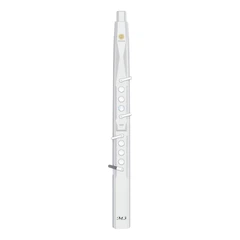


Connect the controller to your computer
There are two main ways to connect your MIDI controller to your computer: either via a USB or through the controller's MIDI IN and MIDI OUT port. Of course, laptops only have the former type of connection, so you'll need to invest in a MIDI cable or MIDI interface to be able to connect the two devices if your controller doesn't have a USB port.
Install MIDI drivers on your computer
Like with any form of USB hardware, your computer needs the controller's drivers to recognise it so it can send and receive messages from the device. Fortunately, most USB devices have these drivers built inside of them, however, if this isn't the case, you'll need to download the drivers from the hardware provider.
Configure the MIDI controller
Next, you'll need to configure the MIDI controller with your DAW. The steps are different depending on the DAW, but generally involve the following:
- In your DAW, search for something like "inputs", "midi inputs", "midi instruments" or "devices".
- Look for a list of available MIDI devices - you may need to enable the MIDI inputs before you can use the controller.
- Click on the option referring to your controller - its brand or model will typically be displayed.
- Ensure your speakers are on and test that everything is set up by playing some notes on your controller.
Map the controls
MIDI mapping allows you to assign parts of your controller to controls in your DAW for in-depth customisation. For instance, you can assign a certain knob a specific sound or FX from your DAW. This saves you from having to tweak a filter via the computer and mouse, but instead by turning the knob. Check out this guide to MIDI mapping by Ableton to learn how to do so.


